A Minecraft Bedrock admin toolkit for managing staff, players, Safe Zones, builds, displays, and world settings from in-game menus.
A Control Room for Your Bedrock World
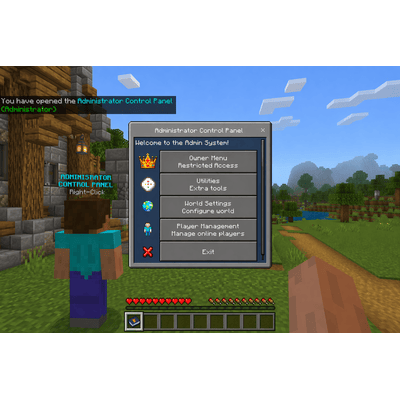
Keep the day-to-day work of running a Minecraft Bedrock world in one place. Administrator Control Panel (ACP) brings player tools, staff access, world settings, safety controls, and creative utilities into an in-game interface built for world owners and the people they trust to help.
Set up the way your team works: create staff ranks, choose the permissions behind each rank, and let each authorized player pick the admin tool they prefer. ACP is suited to private multiplayer worlds, community Realms, and Bedrock Dedicated Servers.
Give Staff the Right Tools
Create ranks that match your community, then choose access one permission at a time. A builder can receive construction tools while a moderator gets player-management options. You decide who can change world settings, use specific utilities, manage players, or access inventory viewers.
Staff menus adapt to those permissions, so each person sees the actions assigned to their role. Separate permissions are available for tools such as Structures, Floating Displays, Chunk Visual, Distance Ruler, player inventory viewing, and Ender Chest viewing or editing.
Choose a Personal Admin Item
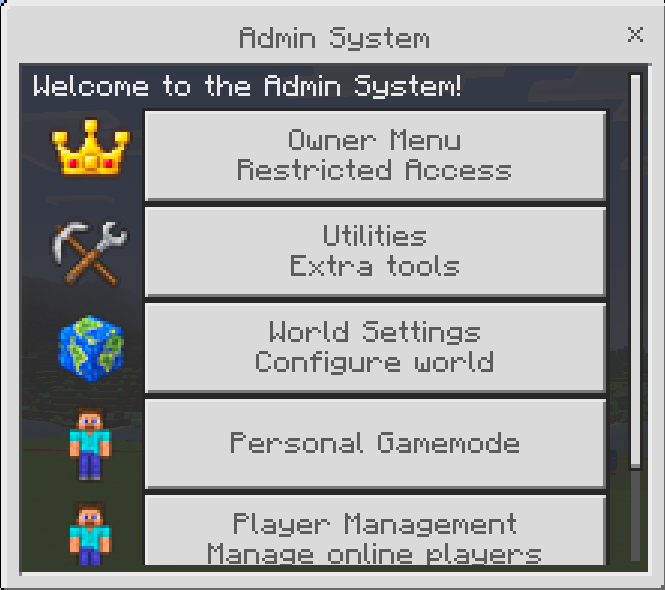
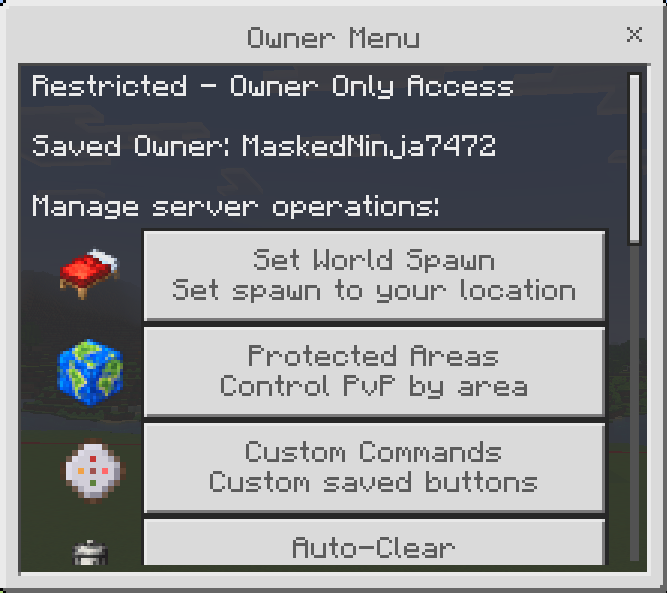
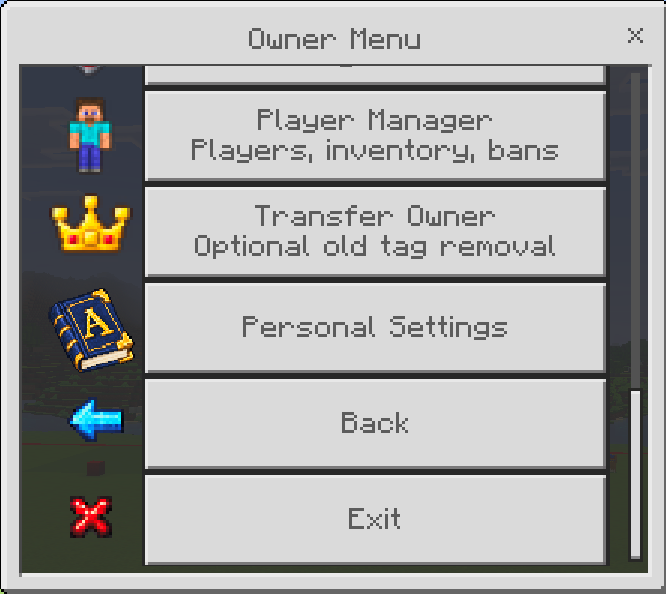
Authorized owners and staff can select a Staff, Diamond Sword, Netherite Sword, Book, or custom held item for opening ACP. The choice is saved for that player. Owners can manage their item from the Owner menu, and staff can find the option in Personal Settings.
You can also rename an item to Admin Settings at an anvil and use it to open the panel. ACP recognizes its admin tools and removes them from unauthorized players, including from offhand slots. Normal items of the same type are left alone, and having the item itself does not grant admin permissions.
Manage Players and Staff
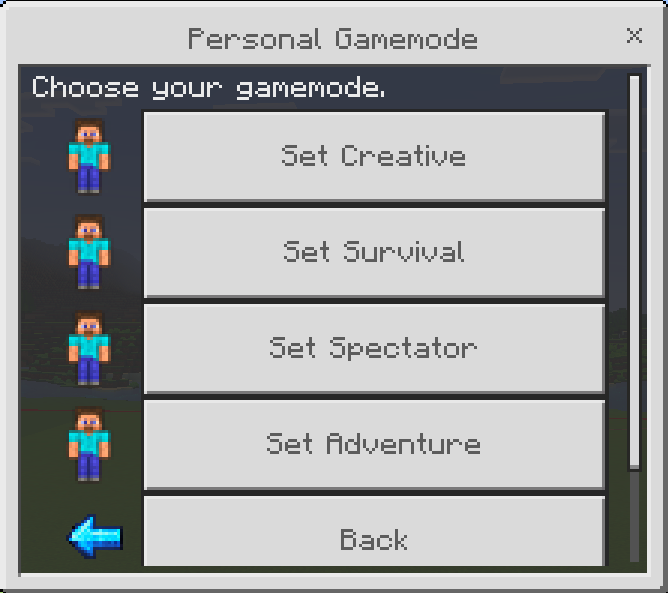
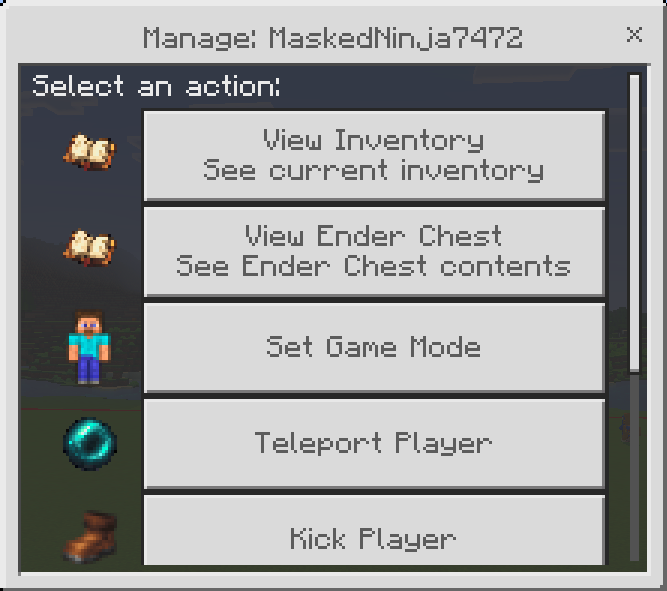
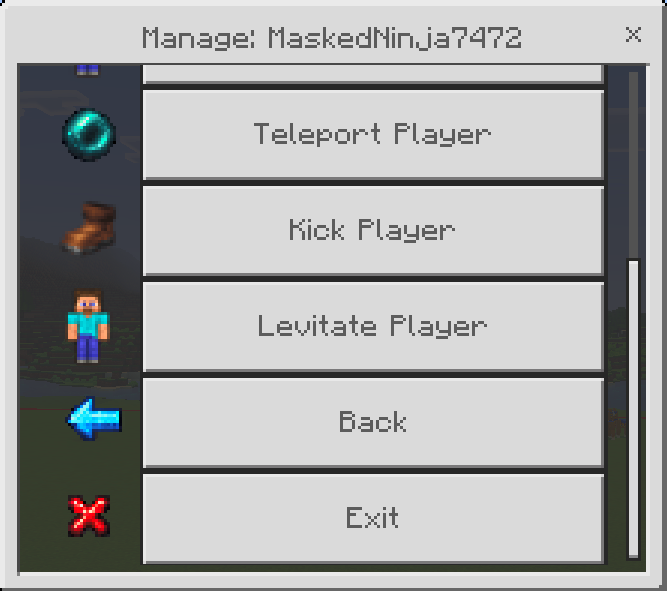
Use the player menus for common moderation and support tasks. Depending on their role, staff can change gamemodes, teleport to or bring over a player, initiate random teleport, kick a player, apply levitation, assign ranks, or remove admin access.
ACP keeps a record of players who have joined, so owners can work with both online players and saved entries. Lists sort players alphabetically, put connected players first, and paginate longer lists. Player history is stored across multiple entries when needed, helping large communities avoid Minecraft’s dynamic-property size limit. When an XUID is available, ACP can also handle a player’s username changes.
Inspect Inventories with Separate Access
Authorized staff can inspect player inventories and Ender Chests. Ender Chest viewing and editing are separate permissions: give a role inspection access while reserving item changes for owners or senior staff. The editor supports refresh, adding and removing items, and a confirmation before deletion.
Spectator options are also permission-controlled. Owners can allow staff to enter Spectator Mode or use the Spectator Chest Viewer without handing out every gamemode or management permission.
Set Up Protected Safe Zones
Create named Safe Zones for a spawn, town, event area, or arena. Boundaries are square and aligned to the block grid. The size setting is the distance from the center to each side; for example, a size of 50 covers a 100 by 100 block footprint.
Configure PvP, mob damage, harmful effects, explosions, and hostile-mob removal for each area. PvP can be managed globally and adjusted per zone, so a dedicated arena can allow combat while the rest of the world stays protected. Safe Zones do not force players into Adventure Mode.
- Block Mob Damage protects players from mob attacks and incoming projectiles, including arrows fired from outside the zone.
- Magic damage is blocked, and harmful effects such as poison, slowness, weakness, and wither are cleared while beneficial effects remain.
- Optional hostile-mob removal can clear monsters such as Endermen, Piglins, and Zombified Piglins while a player is inside the zone. Queries are skipped when a zone is empty.
- Explosion protection is configured independently, and entering or leaving messages use the zone’s name.
Build, Save, and Reuse Structures
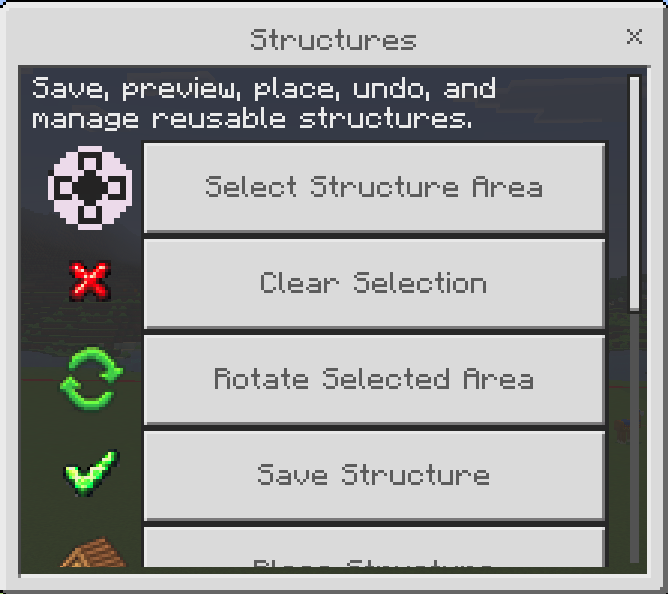
The Structures utility helps staff capture a build and place it again from ACP. Select an area, save a named copy, preview it, and place it with the preview following your position and facing direction. Rotate selections, clear them, and choose whether entities should be included when saving or placing.
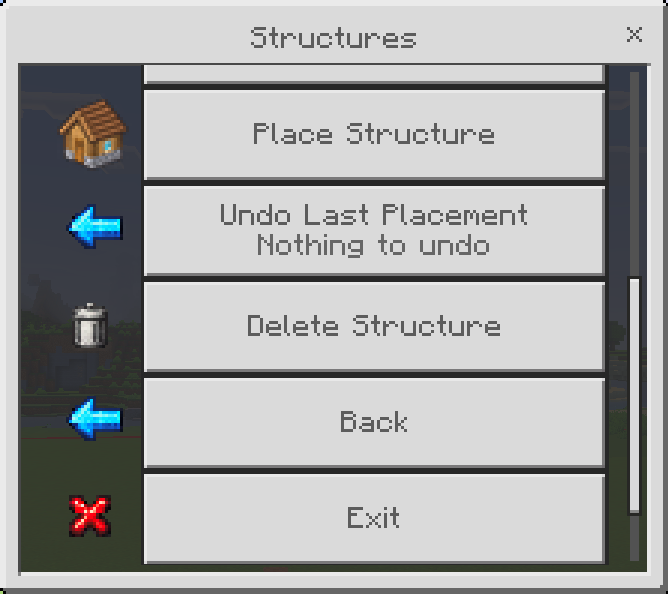
You can delete saved copies and undo the latest placement. Undo restores blocks from the placement snapshot; entities spawned by a placement remain. Structures included in the pack’s .mcstructure folder are available in the placement list and protected from deletion through the menu.
Make Floating Displays
Create floating text or live scoreboard displays for information players need to see in the world. Edit, move, and remove displays through the management menu. Displays support multiple lines, text colors, scoreboard sorting, ranking numbers, and configurable colors. Matching icons and page arrows make larger display lists easier to manage.
Measure and Map Builds
- Distance Ruler: Select a first block and watch the live distance update as you move with the ruler. Select a second block to show the final measurement. Each player has an independent measurement.
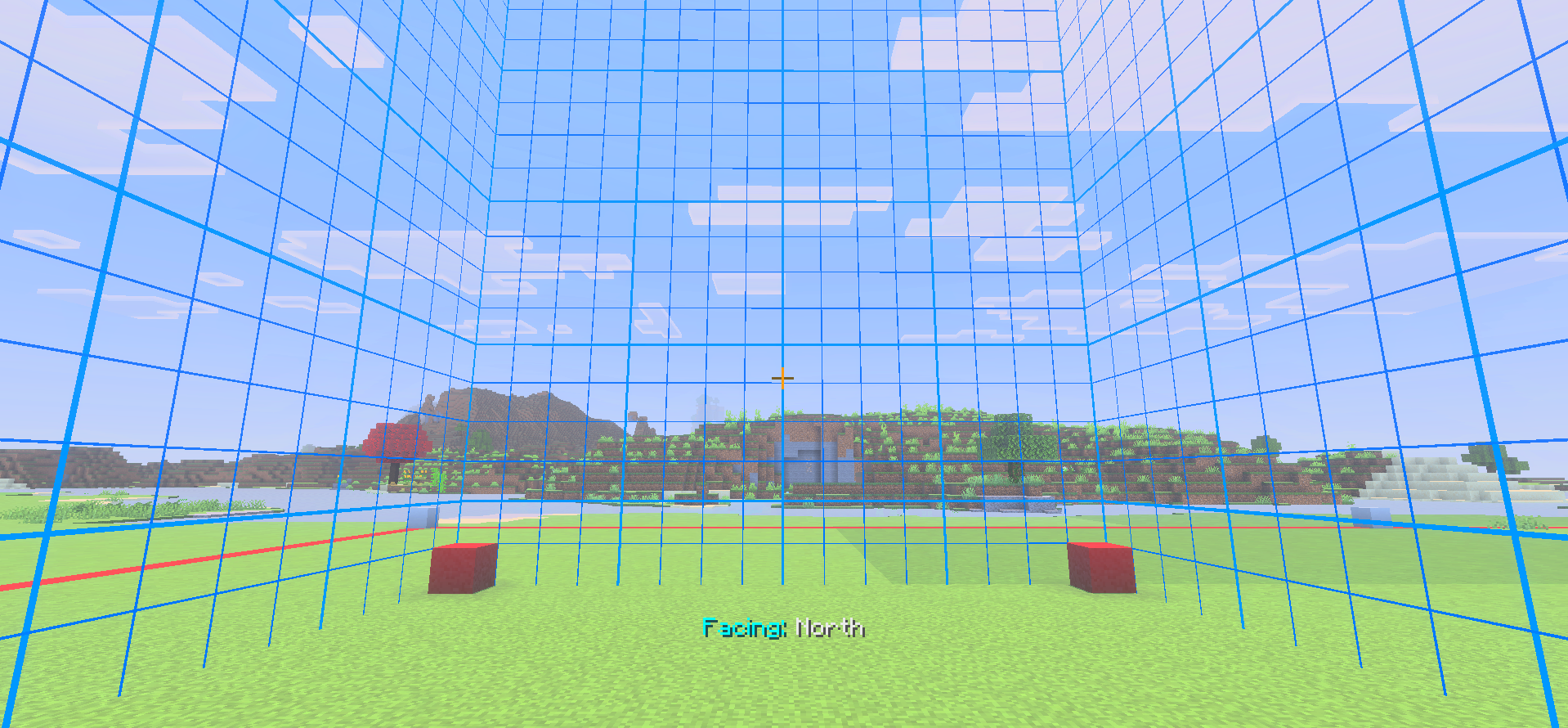
- Chunk Visual: Toggle a transparent blue boundary grid around your current chunk. Connected lines and brighter guides every four blocks make chunk edges easier to follow without covering the space between lines.
Owners can give the Distance Ruler to a regular player without granting access to ACP’s administration menus.
Control World Settings and Cleanup
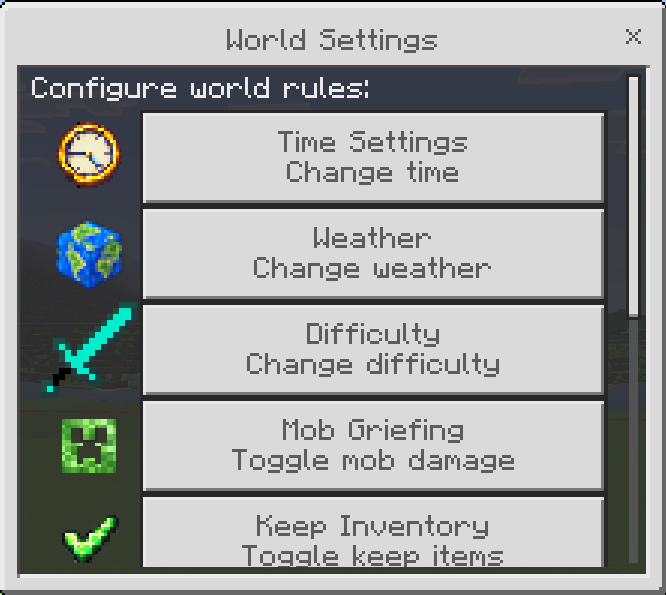
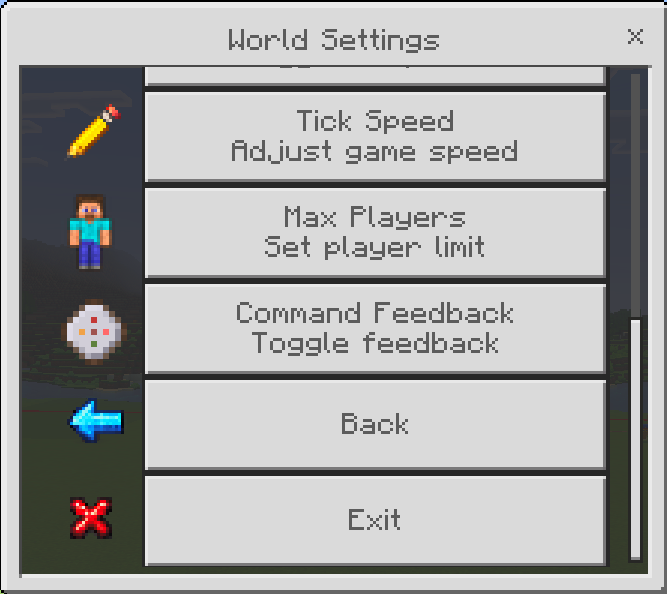
ACP provides menu access to supported settings such as world spawn, time, weather, difficulty, Keep Inventory, Mob Griefing, tick speed, command feedback, and player limits. Lock Time and Lock Clear Weather can be switched through World Settings without turning on cheats; preset and custom time changes use the Script API.
Configure automatic dropped-item cleanup by choosing an interval and enabling the countdown warnings you want. Minute notices stay visible for up to 10 seconds. As the final countdown approaches, the next notice replaces the previous one.
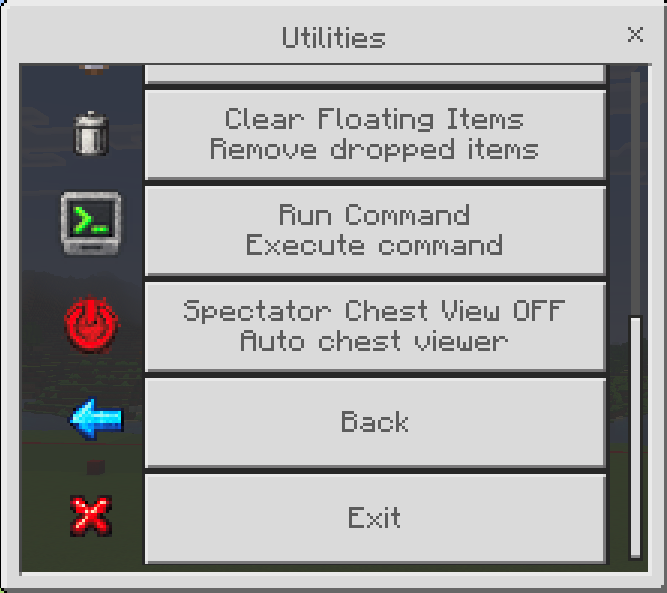
Saved custom commands are shown before the add, edit, and delete controls. ACP also includes tools for running commands, fill operations, clearing floating items, and other administrative tasks. Confirmation prompts help guard actions that could significantly affect the world.
Languages and Compatibility
ACP’s menus and messages are localized in English (United States), German, Spanish (Mexico), Thai, and Simplified Chinese. Recent translations cover the new features, personal tool choices, item names, instructions, and additional menu messages.
The addon uses stable Minecraft Bedrock Script APIs and does not require experimental Beta APIs. Minecraft controls achievement eligibility, and future game updates can change how achievements work with add-ons. Make a world backup before installing or updating ACP, especially when achievements matter to that world.
Install Both Packs
Import and activate the matching Administrator Control Panel Behavior Pack and Resource Pack together. Back up your world before installing or updating, and check that both packs are from the same version. After entering a new world, complete owner setup and configure staff ranks and permissions for your community.
ACP is intended for Minecraft Bedrock single-player and multiplayer worlds, Realms, and Bedrock Dedicated Servers. Feature availability may vary by Minecraft version and hosting environment.
Support
For help, bug reports, and updates, join the Masked Ninja Discord.
1. Install ACP and get started
- Download the addon and import its .mcaddon file into Minecraft Bedrock.
- Open your world's settings. Activate ACP's Behavior Pack and Resource Pack, and use the Minecraft version supported by your download.
- Load the world. In a world without a saved ACP owner, the first player recognized by ACP becomes the owner. On a multiplayer world, have the intended owner join first.
- Choose an Admin Settings tool when the setup menu appears. Existing owners and staff without a saved tool choice also receive this setup.
- Hold the tool and use it to open the admin menu.
The owner has access to owner controls. Staff see actions allowed by their assigned permissions. Simply possessing an admin item does not grant access.
If you close the chooser, you can choose later in Personal Settings. An authorized admin can also open the panel with an item named Admin Settings.
2. Open menus on PC, controller, and touch
- Keyboard and mouse: Hold your admin tool and use the normal Use Item control, usually right-click.
- Controller: Use the control bound to Use Item/Place Block, usually the left trigger.
- Touch: Use Minecraft's item-use control or interact button. Its location depends on your touch-control layout.
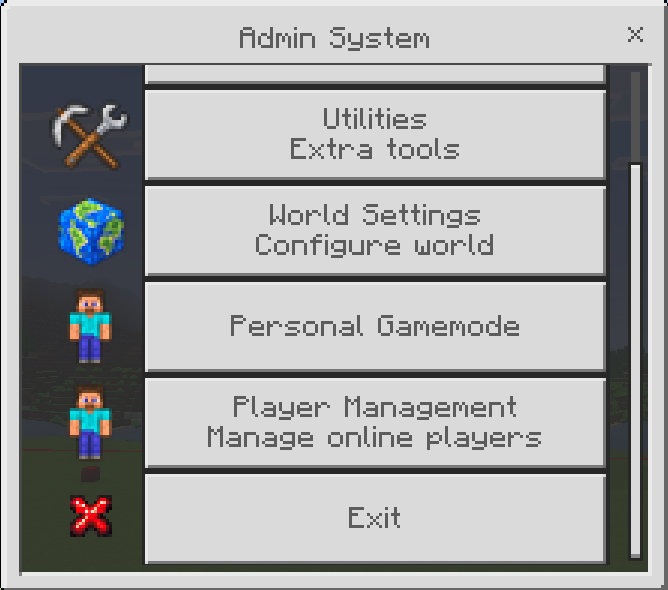
- Navigation: Back returns to the previous menu; Exit closes the menu.
- Spectator: Admins can double-press Sneak quickly to open the admin menu when using an inventory item is unavailable.
The tool opens the admin interface; staff permissions decide which actions are available.
3. Choose, change, or retrieve your admin tool
Owner: Admin Menu → Owner Menu → Personal Settings.
Staff: Admin Menu → Personal Settings.
- Choose Change Admin Tool.
- Select Staff, Diamond Sword, Netherite Sword, Book, or Use Held Item.
- For a built-in tool, ACP gives you the selected item or replaces an existing dedicated admin tool in your inventory. Leave a free inventory slot if needed.
Your preference is saved for your player in that world. Each admin can choose a different tool. Resource-pack subpacks are no longer needed to select an appearance.
Choose Get My Admin Tool to retrieve your saved built-in choice. For a custom choice, hold an item of the saved type; ACP prepares that held item rather than creating a free copy. Tools prepared through this menu are marked to stay with you on death.
4. Use any item as your Admin Settings tool
- Put any item in an anvil.
- Rename it exactly Admin Settings, including the space and capitalization.
- Hold the renamed item and use it to open the panel. You must already have owner or staff access.
To save a custom preference, hold your chosen ordinary item before opening Personal Settings → Change Admin Tool → Use Held Item. The name field can rename the held item for you. The standard name Admin Settings works for any authorized admin; a different custom name is saved as your personal preference.
Using an item named Admin Settings also applies ACP's keep-on-death handling. Normal items that are not recognized as admin tools keep their normal behavior.
5. Create staff ranks and assign permissions
Path: Owner Menu → Admin Control.
- Choose Create Rank and enter a recognizable name, such as Moderator or Builder.
- Enable the actions that rank should be allowed to use, then save.
- Choose the option to assign or edit a player's admin access.
- Select the player and the desired rank, then save the assignment.
- The staff member can choose a personal admin tool and open the menu. Their menu shows permitted actions.
Utility permissions include separate options for Floating Displays, Structures, Chunk Visual, and Distance Ruler. Inventory viewing and editing, Ender Chest access, commands, world settings, and player-management actions also have their own controls.
Example: A Moderator could receive player-management and kick permissions without access to Structures, Fill, commands, or world settings.
Edit a rank to change its available actions. Use the current-admins list to review assignments. The Owner menu is reserved for owners.
6. Remove staff access and transfer ownership
Remove staff: Owner Menu → Admin Control → Remove Player Admin. Select the player and confirm.
- Online players lose the removed access and recognized admin tools are cleaned from their inventory and offhand.
- Offline removals are recorded and checked when the player returns.
- Periodic checks remove recognized admin tools picked up by players without access.
- Ordinary items of the same type are preserved unless they are named or marked as admin tools.
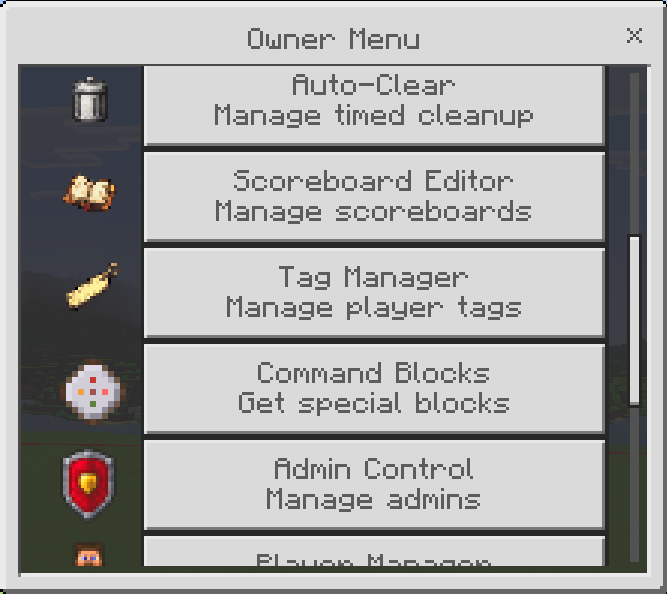
Transfer ownership: The saved owner can use Owner Menu → Transfer Ownership, choose the new owner, review the option concerning the previous owner's owner tag, and confirm. Read that option carefully if the previous owner should no longer retain owner access.
Tool preferences do not replace ranks, permissions, or the saved owner record.
7. Manage players, bans, and inventories
Use Player Management for available online-player actions. Owners can use Owner Menu → Player Manager for saved-player records and ban management.
- Kick: Disconnect a currently online player. Kicking is different from banning.
- Ban: Select a player or saved record and confirm. ACP records the ban and checks returning players.
- Unban: Open the banned-player list or the player's saved record and remove the ban.
- Saved players: Review players remembered by ACP, including players who are currently offline.
- Inventory: Select a player to view slots. Add-item and delete-slot controls depend on your editing permissions.
- Teleport and gamemode: Select the player and the permitted action, then follow the menu prompts.
Inventory actions require the target player to be online. Ender Chest controls also depend on the inventory being available to ACP. If the menu says the Ender Chest is unavailable, that action cannot be completed at that moment.
World bans managed by ACP are separate from a server host's own ban system.
8. Change time, weather, and world settings
Path: Admin Menu → World Settings. Staff need permission for each setting.
- Time: Choose Day, Night, Midnight, Sunset, or Sunrise, or enter a custom time. Custom values run from 0 to 24000; 24000 wraps to the start of the next day.
- Lock Time: Set the desired time, then enable the lock to stop the normal daylight cycle. Turn the lock off to resume it.
- Weather: Select Clear, Rain, or Thunder.
- Lock Clear Weather: Enable it to clear the weather and stop the normal weather cycle. Unlock weather before selecting Rain or Thunder.
- Other controls: Available menus include difficulty and world rules such as Keep Inventory and Mob Griefing, depending on permissions.
Time controls and the time/weather locks use the Script API. Some other actions run Minecraft commands and can fail when the world or server does not permit those commands. Read the in-game result message; a failed action has not necessarily changed the setting.
9. Create and configure Safe Zones
Path: Owner Menu → Safe Zones.
- Travel to the dimension where you want the zone.
- Create a zone, give it a name, and enter its center coordinates.
- Set the half-size: the distance from the center to each side of the square. A half-size of 50 describes a 100 × 100-block footprint.
- Choose its PvP, explosion, hostile-mob, and mob-damage settings.
- Save, then select the zone to edit its settings, enable/disable it, or delete it.
Zone membership uses the horizontal X/Z boundary in the zone's dimension. The saved center Y does not create a limited-height protection box.
- Zone PvP: Controls player combat in the zone. Zones can override ACP's global PvP setting; overlapping protection rules can affect the result.
- Explosion protection: Prevents explosion events affecting the protected area.
- Hostile-mob removal: Removes recognized hostile mobs while a player is inside the area. This is removal, not simply blocking attacks.
- Block Mob Damage: Protects players from mob attacks, incoming non-player projectiles, and magic damage. Harmful effects are cleared while beneficial effects are preserved.
Block Mob Damage also clears harmful effects from other sources inside protected zones. It is not a general promise of protection from every environmental hazard. Safe Zones do not switch your gamemode or provide hunger management.
10. Configure automatic dropped-item cleanup
Path: Owner Menu → Auto Cleanup.
- Enable automatic cleanup.
- Select an interval: 5, 10, 15, 20, 30, 45, or 60 minutes.
- Enable only the countdown warnings you want players to receive.
- Save the settings.
Cleanup removes dropped item entities in the Overworld, Nether, and End. It is not an inventory or chest cleanup. Pick up items you want to keep before the countdown finishes.
Minute warnings display for up to 10 seconds. Short warnings are replaced by the next countdown notice. Warnings longer than the selected interval remain saved but do not run during that shorter cycle. You can disable all warnings or turn cleanup off.
11. Measure distances with the Distance Ruler
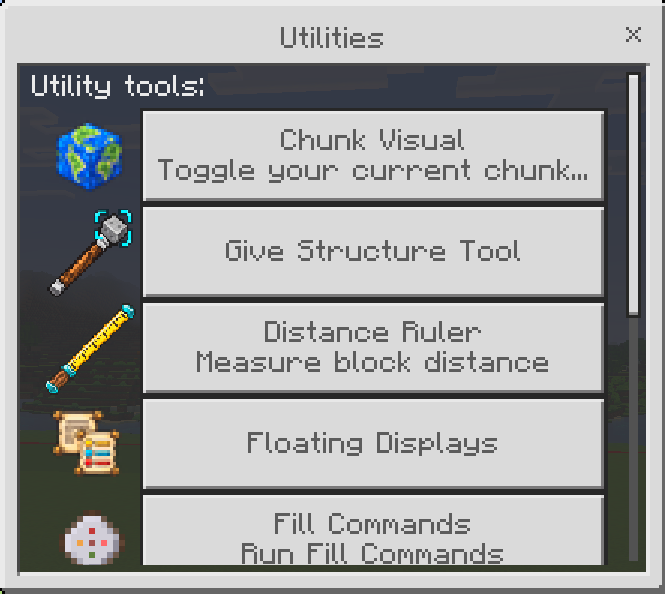
Path: Admin Menu → Utilities → Give Distance Ruler.
- Hold the ruler, aim at the first block, and use the item.
- Move while holding the ruler to see the live distance readout.
- Aim at the second block and use the ruler again to get the final measurement.
- The completed measurement clears the first point and live readout. Use the ruler again to start another measurement.
Block targeting reaches up to 64 blocks. Straight measurements count included blocks: adjacent blocks give a measurement of 2. Diagonal measurements can show decimals. The live readout measures from the first block to your current block position; the final result measures between the two targeted blocks.
12. Show chunk boundaries
Path: Admin Menu → Utilities → Chunk Visual.
- Select the button to toggle your current chunk boundary display.
- The blue grid shows the walls of the 16 × 16-block chunk you are standing in.
- Move into another chunk to update the boundary being displayed.
- The action bar shows your facing direction.
- Select the same button again to turn the display off.
Chunk Visual is a menu toggle; no inventory item is required. It displays boundaries and does not change terrain.
13. Save, place, rotate, and undo Structures
Path: Admin Menu → Utilities → Give Structure Tool. Hold and use the tool to open its menu.
Select and save
- Choose Select Area.
- Aim at the first corner block and use the tool to lock corner 1.
- Look at the second corner. You can also aim into the air; the selection reach determines the point used when no block is hit.
- Use the tool again to lock corner 2.
- Use the tool to reopen its menu and choose Save Structure.
- Name the structure, choose whether to save entities, and save.
Sneak + Use while selecting opens the menu so you can adjust selection reach. Reach can be set from 1 to 64 blocks. Clear Selection cancels the area. Saved selections are limited to 64 blocks on each axis and 262,144 blocks in total.
Place a saved structure
- Choose Place Structure and select a saved or pack-provided structure.
- Choose whether to include saved entities.
- Move and turn to position the placement preview. Check its location and facing before committing.
- Use the Structure Tool to place it, or Sneak + Use to cancel placement.
Rotate, delete, and undo
- Rotate Selected Area: Rotate the selected blocks left or right. This changes the selected area in the world; it is not only a preview rotation.
- Delete Structure: Removes a saved copy from the available list. It does not erase structures already placed in the world. Pack-provided structures cannot be deleted through this menu.
- Undo: Restores the block snapshot from your last supported placement or rotation operation.
Only the latest undo record is retained for each player in the current session. Leaving the world or restarting clears that undo record. Placement undo restores blocks only; spawned entities remain. Undo is not a replacement for a world backup.
14. Create floating text and scoreboard displays
Path: Admin Menu → Utilities → Floating Displays.
Floating text
- Choose the new-text option.
- Enter the text and coordinates in X Y Z format. Coordinates default to your current position.
- Use
\n for line breaks, for example Welcome!\nPlease read the rules. - Save the display.
Minecraft formatting codes such as §b can color text. Example: §bWelcome!\n§fEnjoy your stay.
Live scoreboard display
- Create a scoreboard objective first through Owner Menu → Scoreboard Editor if one does not exist.
- Choose the new-scoreboard option in Floating Displays.
- Set the heading, position, objective, ascending/descending order, and ranking-number option.
- Choose colors for ranks, names, and scores, and set a row limit from 1 to 15.
- Save. The display updates from the selected objective.
Use Manage Displays to select a display, edit text/settings, move it by changing coordinates, or delete it. Lists are paginated and belong to the dimension you are managing.
15. Custom Commands, Scoreboards, Tags, and other utilities
- Custom Commands: Owner Menu → Custom Commands. Add a button name and command, using the second field only when you need to continue the command text. Include a separating space where needed. Saved buttons appear above the editing controls. A repeating toggle runs while enabled; turn it off when finished.
- Scoreboard Editor: Create objectives, inspect objectives, edit player scores, set scores, choose a display, or delete an objective. Deleting an objective also removes the scores stored in it.
- Tag Manager: Add, remove, or inspect player tags. ACP uses some tags internally; avoid changing access or owner tags casually.
- World Spawn: Use Owner Menu → Set World Spawn and confirm the location.
- Run Command: Available to authorized staff. Enter the command and check the success or error message.
- Clear Items: Removes dropped items after confirmation. It cannot retrieve items removed earlier.
- Fill: Enable the available Air, Grass, Stone, or custom fill options. Enabled options repeatedly modify blocks around you as you move. Turn them off when finished and test in a copy of the world before using them on an important build.
- Spectator chest viewer: Enable the permitted viewer, enter Spectator, and look at a supported nearby container. Viewing and editing controls depend on permissions and container availability.
Command-based tools remain subject to Minecraft's world/server command rules. Staff should use only actions authorized by the owner.
16. Updates, saved data, and troubleshooting
Updating an existing world
- Back up the world before updating.
- Import the updated pack and confirm the intended Behavior Pack and Resource Pack are active together.
- Remove obsolete pack copies from the world's active pack folders. Old ZIP files or duplicate definitions can cause Minecraft to load outdated resources.
- Use official updates that preserve ACP's pack identifiers. Tool preferences use separate saved properties and do not reset ACP's existing bans, player history, ranks, structures, displays, or world settings.
Common questions
- A button is missing: Check your rank permissions. Staff see only permitted actions; owner-only controls stay in the Owner menu. Also confirm you are using the version covered by this guide.
- The tool does not open the menu: Check your admin access and active packs. For an ordinary renamed item, use the exact name Admin Settings.
- The first-time chooser did not appear: Close other forms, wait briefly, and check Personal Settings. If you intentionally dismissed setup, it does not repeatedly interrupt that session.
- I lost my tool: Retrieve a built-in choice through Personal Settings → Get My Admin Tool, or rename an ordinary item to Admin Settings. Custom retrieval uses a held item of the saved type.
- The tool could not be given: Free an inventory slot, then try again.
- My new icon still looks old: Exit and reopen the world to reload the Resource Pack and check for duplicate pack copies.
- A command fails: Check its spelling, target, and the world's/server's command permissions. Having an ACP rank does not guarantee every Minecraft command is allowed.
- Ender Chest unavailable: The player must be online and the inventory must be accessible to the API. Do not treat the message as confirmation that the chest is empty.
- Undo is empty: It only remembers your latest supported operation in the current session. It does not provide permanent undo history.
When requesting support, include your Minecraft version, ACP version, what you selected, what happened, and relevant Content Log messages. Avoid including private server credentials.
Administrator Control Panel — v3.1.0 User Guide
Use ACP to manage your Minecraft Bedrock world through in-game menus. This guide covers v3.1.0, including personal admin tools, Structures, Floating Displays, and the updated Safe Zones. Older releases may have different menus or fewer options. Button names may also differ with your Minecraft language.